PiPiece
A Raspberry Pi-based camera control system for astrophotography and wildlife monitoring, featuring a web-based interface for the Raspberry Pi HQ Camera.
Getting started? See the Quickstart Guide to get running in minutes.
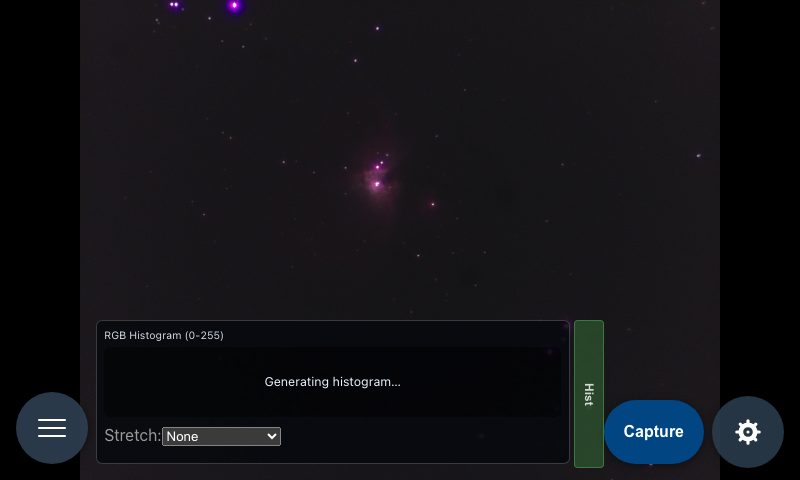 PiPiece running on Raspberry Pi with HyperPixel4 touchscreen
Bird Watcher Feature
PiPiece includes an AI-powered bird watcher that runs directly on the Raspberry Pi using the LiteRT on-device inference runtime. Point the camera at a bird feeder and the system automatically detects and photographs every visitor.
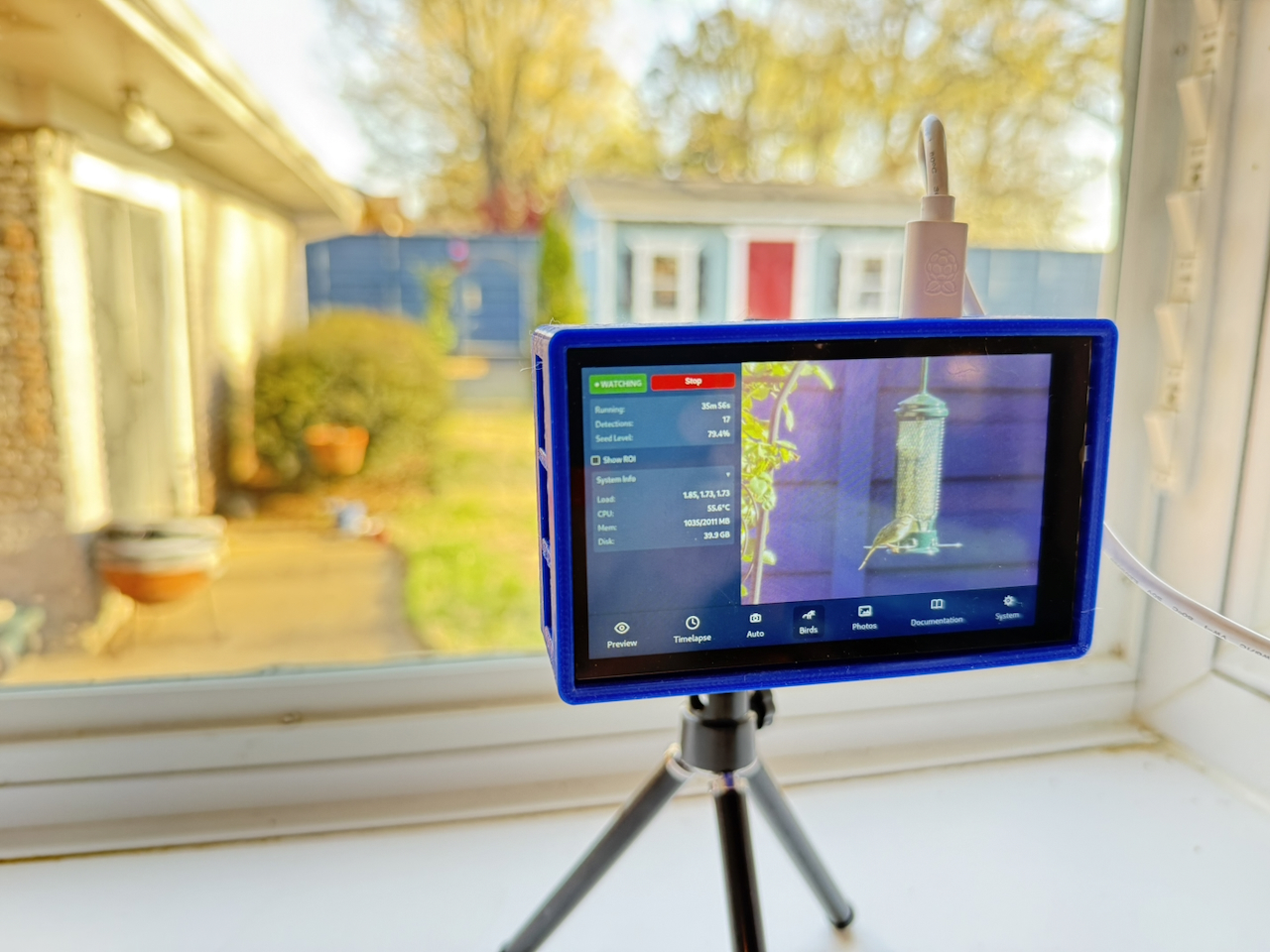 | 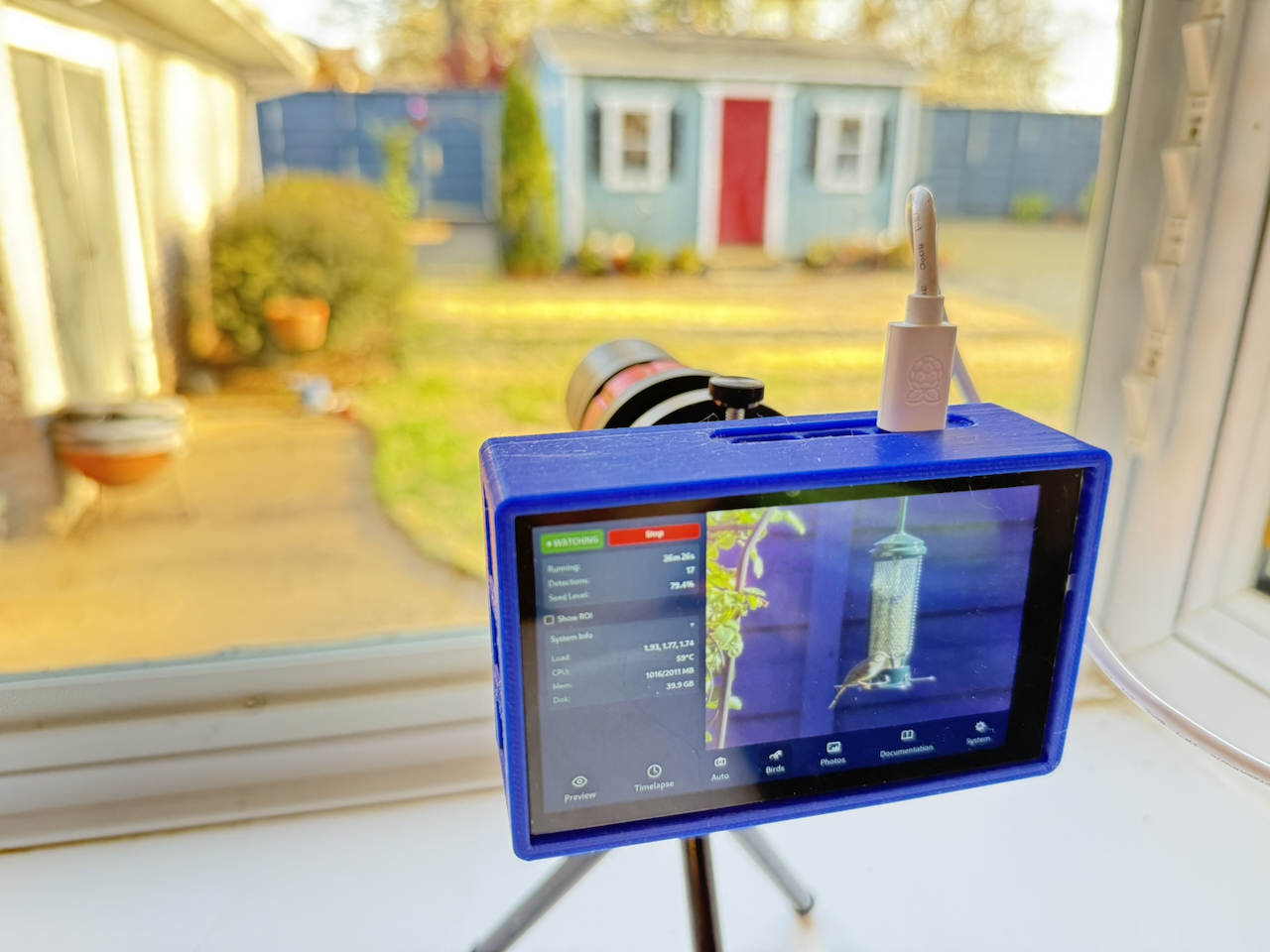 |
| Real captures from PiPiece — birds detected and photographed automatically |
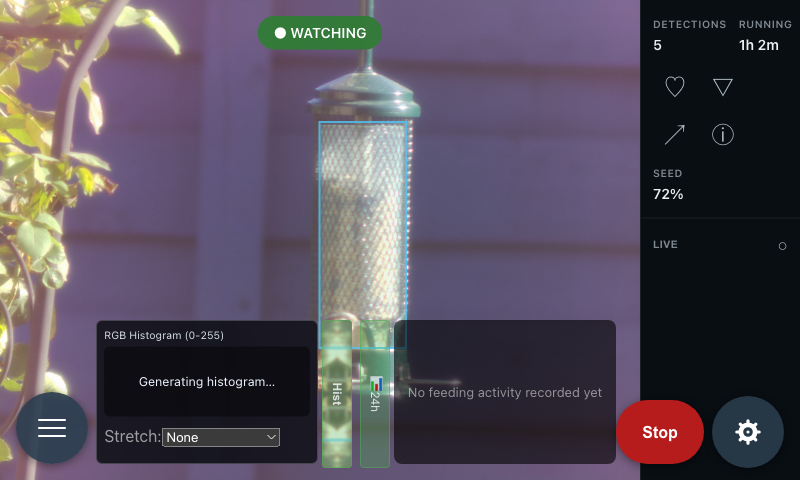 Bird Watcher active state — latest detection shown with seed level and system status
How to use it
- Navigate to the Bird Watcher view (bird icon in the toolbar)
- Click Take Preview Photo to frame your feeder
- Click Draw ROI and drag a box over the seed tube to enable seed level tracking
- Adjust the confidence threshold and cooldown if needed (defaults work well for most setups)
- Click Start Bird Watcher — the indicator turns ● WATCHING and captures begin automatically
All captures save to ~/photos/bird_captures/ as full-resolution JPEG + RAW DNG pairs.
Action Mode — freezing birds in flight
New: A shutter-priority Action exposure mode that keeps the shutter fast enough to freeze wingbeats without ruining dawn and dusk captures.
Pick Action (freeze motion) under AE Mode in the Camera Exposure section and set Shutter (µs) to your target — 1000 is 1/1000s, 500 is 1/2000s (leave it at 0 to use 1/1000s).
The watcher pins the shutter at that target and leaves auto-exposure on, so libcamera's AGC adjusts gain only: in daylight it sits at low gain and every frame freezes motion; as clouds roll in the gain rises on its own. Gain is not an input in this mode because the AGC owns it.
When the light drops far enough that gain pins at the sensor maximum and frames are still dark, the watcher slides the shutter back in 1.5× steps (to a 1/50s floor), then tightens it toward the target as the light returns. Separate lengthen/shorten gain thresholds, three consecutive agreeing readings, and a minimum dwell keep it from oscillating through a passing cloud. Every adjustment is logged, so behavior on the Pi is diagnosable from pm2 logs:
[exposure] shutter 1000→1500µs, gain=16.0, lux=42Bird Rarity Alerts
New: When an unusual visitor lands, a full-screen outline flashes to get your attention.
| Alert | Color | Meaning |
|---|---|---|
| New Bird | Gold | Species not seen in the last N days (default: 30) |
| Rare Bird | Silver | Species with fewer than N total sightings (default: 5) |
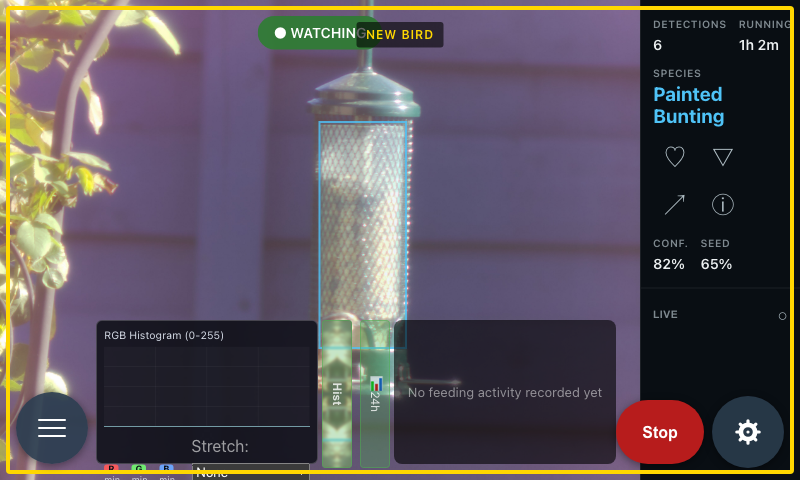 | 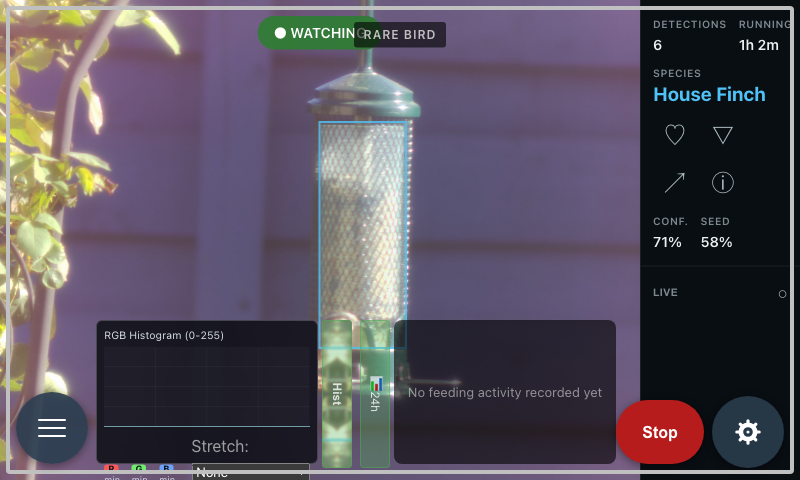 |
| Left: gold outline for a new species. Right: silver outline for a rare visitor. |
The outline flashes 3 times, then pulses slowly, and auto-dismisses after 30 seconds. Configure the thresholds in the Bird Watcher settings panel ("New Bird Window" and "Rare Bird Threshold").
The system tracks every sighting in ~/.config/pipiece-ui/bird-species-summary.json and a sightings table in ~/.config/pipiece-ui/bird-captures.db so rarity is determined accurately across restarts.
Low-Seed Alerts
New: Get notified off-device when the feeder is running low, instead of only finding out by looking at the UI.
Enable Low-Seed Alert in the Bird Watcher settings panel and set a threshold percentage (default 20%) and an optional recipient. When the tracked seed level crosses at-or-below the threshold, the server runs a low-seed-alert.sh hook once — it re-arms silently once the level recovers above the threshold, so a refill lets it fire again on the next low reading, and it never fires on every detection while still low.
The hook is a no-op unless you create server/hooks/low-seed-alert.sh yourself — this keeps provider secrets (a webhook URL, SMTP credentials, a Twilio token, etc.) out of the repo and lets you wire up whatever notification channel you prefer (curl to a webhook, mail, a Twilio/ntfy/Pushover call...). The server passes context via environment variables:
| Variable | Meaning |
|---|---|
POSTPROCESS_SEED_LEVEL | The seed fill percentage that triggered the alert |
POSTPROCESS_THRESHOLD | The configured low-seed threshold |
POSTPROCESS_RECIPIENT | The recipient configured in settings, if any |
Keep secrets themselves (webhook URLs, SMTP/Twilio credentials) in ~/.config/pipiece-ui/pipiece.env or system.env and reference them from your script — never commit them.
Daily Bird Reports
New: Reports are now fully interactive. The Reports view renders live from the captures database — every photo in a report opens the same lightbox as the Gallery, with like/dislike, review, confirm-ID, and reclassify available right there. No more hunting a report image down in the Gallery tab to act on it.
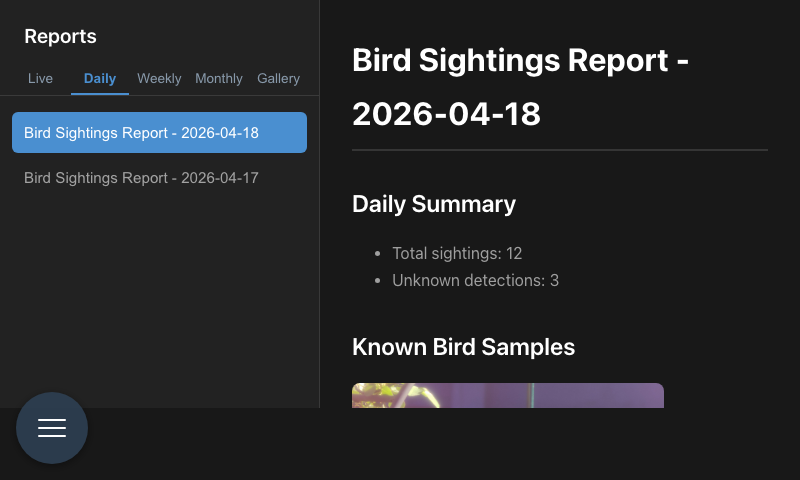 Daily report with sighting summary and species capture grid
The Live, Daily, Weekly, and Monthly tabs load structured JSON from the report data endpoints (/api/bird-watcher/reports/.../data) and render:
- Headline stats (sightings, species, unknown detections) with an hourly or per-day activity chart
- A capture grid per species — common name, scientific name, and rarity badge from the species info cache
- An Unknown-detections section rendered the same way
- Weather summary line for the period
Old archived reports that predate the captures database still open via their markdown files:
~/photos/reports/YYYY-MM-DD.md
Backfill missing days:
Backfill missing days:
cd ~/pipiece-ui
npm run reports:backfill -- --from 2026-04-01 --to 2026-04-19 --dry-run
npm run reports:backfill -- --from 2026-04-01 --to 2026-04-19

# or run the script directly
node scripts/backfill_bird_reports.mjs --from 2026-04-01 --to 2026-04-19 --dry-run
node scripts/backfill_bird_reports.mjs --from 2026-04-01 --to 2026-04-19

# if your API is on a non-default host/port
node scripts/backfill_bird_reports.mjs --base-url http://127.0.0.1:80 --from 2026-04-01 --to 2026-04-19
Overwrite existing report files when needed:
node scripts/backfill_bird_reports.mjs --from 2026-04-01 --to 2026-04-19 --overwriteHow it works
- A background Python process runs a 320×320 EfficientDet-Lite0 object detection model at ~5–6 fps using the existing camera low-resolution stream
- When a bird (COCO class
bird) is detected above the confidence threshold, the system captures a full-resolution 4056×3040 JPEG + RAW DNG still from the high-resolution stream New: An optional EfficientNetB0 species classifier identifies the bird and names the file after the species (e.g.
american_robin_20260326_143022.jpg). When no model is present, files are saved asunknown_*. Train your own model withscripts/train_bird_classifier.py.- The Express.js server watches for new captures and pushes a
bird_detectionSSE event to the Vue UI, which displays the latest photo in real time New: The Bird Watcher HUD now shows the bird's common name (e.g. "Northern Cardinal") as the primary label in the Species row, with the classifier's scientific name (e.g. "Cardinalis cardinalis") shown as secondary text underneath — resolved from the existing iNaturalist-backed species-info cache.
New: The server tracks detection timestamps and exposes a
/api/bird-watcher/activityendpoint for hourly feeding rate data. The Vue UI overlays a toggleable feeding activity graph on the image with localStorage persistence.New: The server runs a
determineBirdRarity()function on every detection, attaches ararityfield to the SSE event ('new','rare', or'common'), and persists sighting history to disk. The Vue UI renders a gold or silver outline alert for new and rare species.New: The HUD's rating cluster gained an ⓘ photo-info button next to like/dislike. It opens the same capture-settings panel the Photos viewer uses — exposure, gain, ISO, size, capture time — read from the capture's DNG sibling, so you can see that the shot you just got was 1/200s at gain 8 without leaving bird mode. A bird landing while the panel is open just swaps the numbers.
- A visual seed level estimator analyzes a user-defined ROI on the transparent tube feeder using HSV color masking, reporting fill percentage with yellow/red warnings
- All captures are saved to
~/photos/bird_captures/and accessible through the Photos view
Astro Live Stacking
New: PiPiece works as an electronic eyepiece. Pick the Stack camera mode, set gain and exposure, press Start — every subframe is plate-solved, dark/flat calibrated, aligned onto the first frame and folded into a running stack you watch build live on screen.
This is the feature the project was originally built for, and none of it leaves the Pi: solving, calibration, alignment and stacking all run on-device.
Per subframe the worker (scripts/astro_stacker.py) captures a long exposure, plate-solves it with a local astrometry.net solve-field (ASTAP is an opt-in alternative), applies the matching master dark and flat, warps it onto the reference frame's WCS, and accumulates it — mean, sum, or sigma-clipped. The combined FITS is rewritten atomically after every frame and served at /api/astro/latest.fits, so the browser re-parses a complete stack each time.
- Auto-identified targets — the solved center is matched against a bundled catalog, so the HUD names what you're looking at (
M 51) and the files are filed under it - Live HUD — frame count, a per-exposure countdown with progress bar, total integration, an SNR estimate, and the last frame's
Solved/Solve failed/Discardedstatus, pushed over theastro_stackSSE event - Stop vs Restart — Stop ends the session and saves the stack; Restart saves it and begins a fresh accumulation on a new reference frame without releasing the camera, so moving to the next target costs no warm-up
- Calibration library — capture and median-combine master darks and flats from the UI; a matching master is applied to every sub automatically, keeping fixed-pattern noise and vignetting out of the stack entirely
New: A flat run now shoots dark flats too. After the flats it stops and asks you to cap the lens, then captures the same frames at the exposure it metered and subtracts their median before building the master. Without that step the sensor's black-level pedestal rides under the division and the flat under-corrects vignetting by a few percent — uniformly, and invisibly, however long you integrate.
- Keep subframes — optionally archive every solved sub as its own FITS under
light/<target>/, named the way dedicated astro cameras name theirs (Light_M 51_60.0s_Bin1_20260725-033942_0001.fits) so Siril, DeepSkyStacker and PixInsight group the session correctly on import - Auto-detected optics — leave focal length at 0 and the first solve measures your true plate scale, then writes the derived focal length back into the field
Finished stacks land in $PHOTOS_DIR/astro/<target>/<YYYYMMDD>/ as a FITS plus an auto-stretched PNG preview, and are browsable under Reports → Astro — a tab that only appears once you have astrophotos.
Three one-time setup steps on the Pi: setup/astro-venv.sh (astropy in a dedicated ~/astro_venv, kept away from the bird watcher's LiteRT env), setup/astrometry.sh (solve-field plus index files), and setup/sensor-dpc.sh, which turns off the IMX477's on-sensor defective pixel correction — Sony's "star eater", which reads a faint star sitting on one or two pixels as a hot pixel and filters it out of the raw data before any file is written. That one is a boot-time kernel module option, so it needs a reboot to take effect; System → Doctor reports the live state and says reboot pending rather than going green early. Starting a session returns 503 until the venv exists rather than silently failing.
Full walkthrough: Astro Live Stacking.
FITS Viewer
New:
.fits/.fitframes open in a browser-decoded viewer with pinch-zoom and pan, a per-channel histogram, and a black/mid/white stretch you drag directly on the histogram trace.
Open any .fits or .fit file from the Photos view and it renders in a dedicated viewer rather than the normal image lightbox. The file is decoded in the browser — nothing is converted on the Pi first — so the histogram and the stretch controls work on the frame's own values, not on a JPEG proxy.
- Zoom and pan — pinch, wheel, or the + / − / reset buttons in the bottom-right; drag to pan. Enough to check star shape, focus and trailing without pulling the file off the Pi.
- Histogram — click Hist for a per-channel trace binned on the raw FITS values (a 16-bit stack runs to 65535, a float stack to anything). Both the binning and the statistics are strided, so a 6MP plane stays cheap on a 2GB Pi.
- Stretch —
Linear(the plain min→max map, and the default for bird and report FITS),Auto, orManual. - Draggable points — the black, mid and white points are markers on the histogram itself, labelled with their frame values. Grabbing one switches to Manual on its own, seeded from whatever Auto solved, so adjusting by hand starts from Auto's result instead of from arbitrary defaults.
Auto-stretch
Auto is a linked screen transfer function in the PixInsight/Siril mould: robust statistics (median + MAD) place the black point 2.8 sigma below the sky median, the white point rejects the few brightest samples, and a midtones transfer function lands the sky background at 25% brightness. Faint nebulosity lifts without flattening the star field.
One solve covers all three colour channels rather than one per plane. Solving per plane forces every channel's sky background onto the same target, which neutralises the colour ratios that carry star and nebula colour — and costs three times the sorting on every re-render.
This is what the live stacking view uses, where you cannot fix the display by hand mid-session.
Overview
PiPiece combines a powerful Express.js REST API backend with a modern Vue.js touchscreen interface to provide comprehensive control over the Raspberry Pi HQ Camera. The system is optimized for use with the PiPiece 3D printed case and HyperPixel4 display, creating a portable, self-contained imaging platform.
Originally designed for astrophotography, PiPiece has evolved into a general-purpose AI camera platform — including on-device bird detection and photography at a feeder using the LiteRT inference runtime.
Key Features
- 🐦 Bird Watcher: AI-powered automatic bird detection, species classification, and photography using EfficientDet-Lite0 + EfficientNetB0, with hourly feeding activity graph and rarity alerts
- 📷 Full Camera Control: Exposure time, gain, white balance (red/blue gains)
- 🖥️ Touchscreen Interface: Optimized for 4" HyperPixel4 display
- 🔄 Live Preview: Continuous capture mode with auto-refresh
- 🌌 Astro Live Stacking: On-device plate solving, dark/flat calibration, alignment and stacking — an electronic eyepiece that builds a deep-sky image live, with a target-naming catalog and an ASIAIR-style subframe archive
- 🔭 FITS Viewer: Browser-decoded
.fits/.fitrendering with zoom, pan, a per-channel histogram, and a linked auto-stretch you can adjust by dragging on the trace - ⏱️ Timelapse Support: Automated sequential imaging
- 🌐 RESTful API: Complete camera and system control via HTTP
- 📊 Server-Sent Events: Real-time status updates
- 📖 Interactive Documentation: Built-in Swagger UI API explorer
- ⚙️ System Management: Remote restart, shutdown, and updates
Architecture
┌─────────────────────────────────────────┐
│         Vue.js Web Interface            │
│  (Touchscreen-optimized for HyperPixel) │
└─────────────┬───────────────────────────┘
              │ HTTP/REST API
┌─────────────▼───────────────────────────┐
│          Express.js Server              │
│          (Port 80)                      │
└─────────────┬───────────────────────────┘
              │ rpicam-* commands
┌─────────────▼───────────────────────────┐
│      Raspberry Pi HQ Camera             │
│       (12.3 MP, CS/C Mount)             │
└─────────────────────────────────────────┘
PiPiece on Telescope
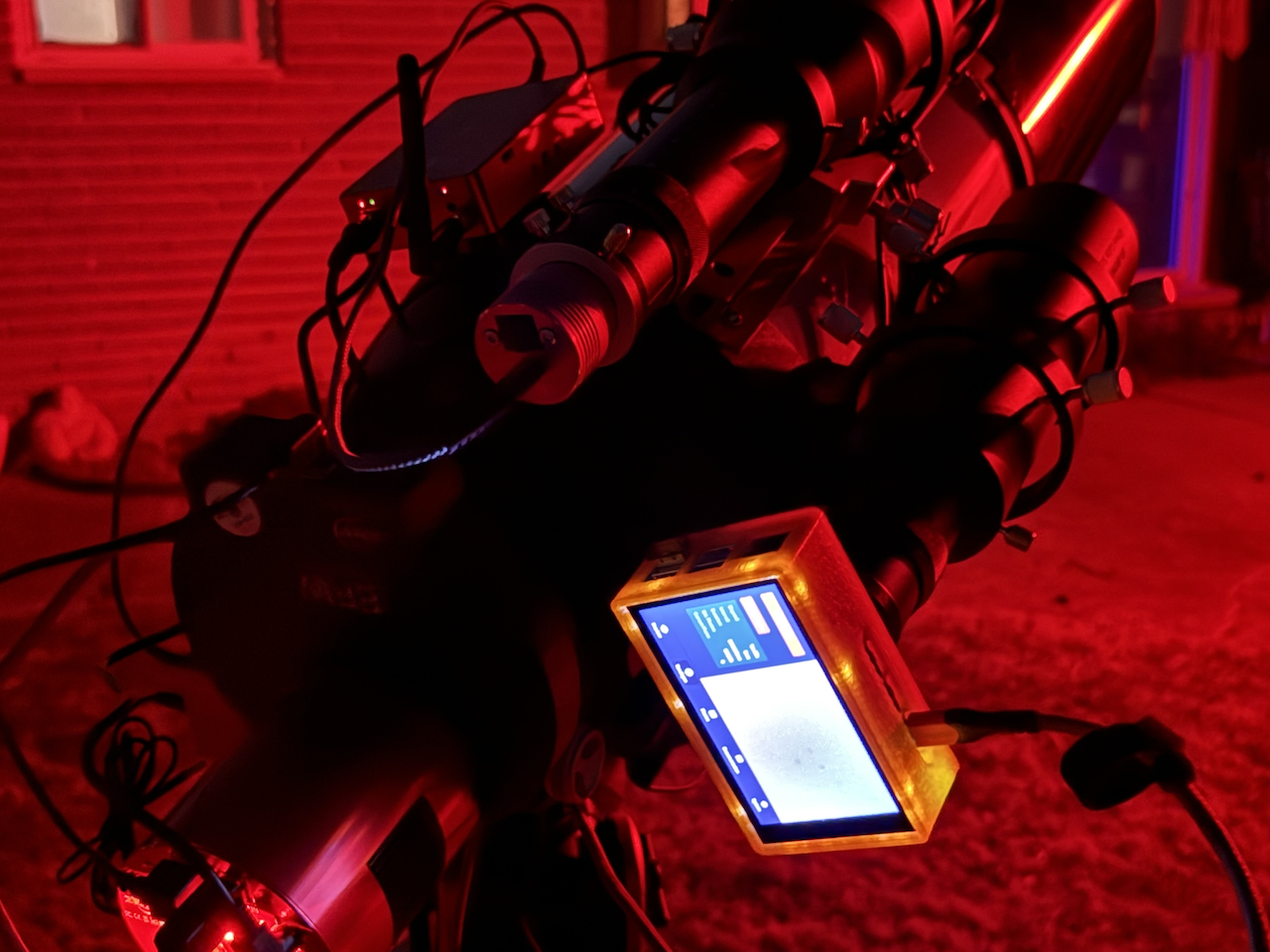 PiPiece mounted to a 60mm guidescope riding the rest of my telescope setup
Hardware Requirements
- Raspberry Pi 5 (tested) or newer
- Raspberry Pi HQ Camera (12.3 megapixel, C/CS mount)
- HyperPixel4 touchscreen display (optional but recommended)
- PiPiece Case - 3D printable design available at gitlab.com/johnwebbcole/pipiece
- SD Card (16GB minimum, 32GB+ recommended)
- Power Supply (official Raspberry Pi power supply recommended)
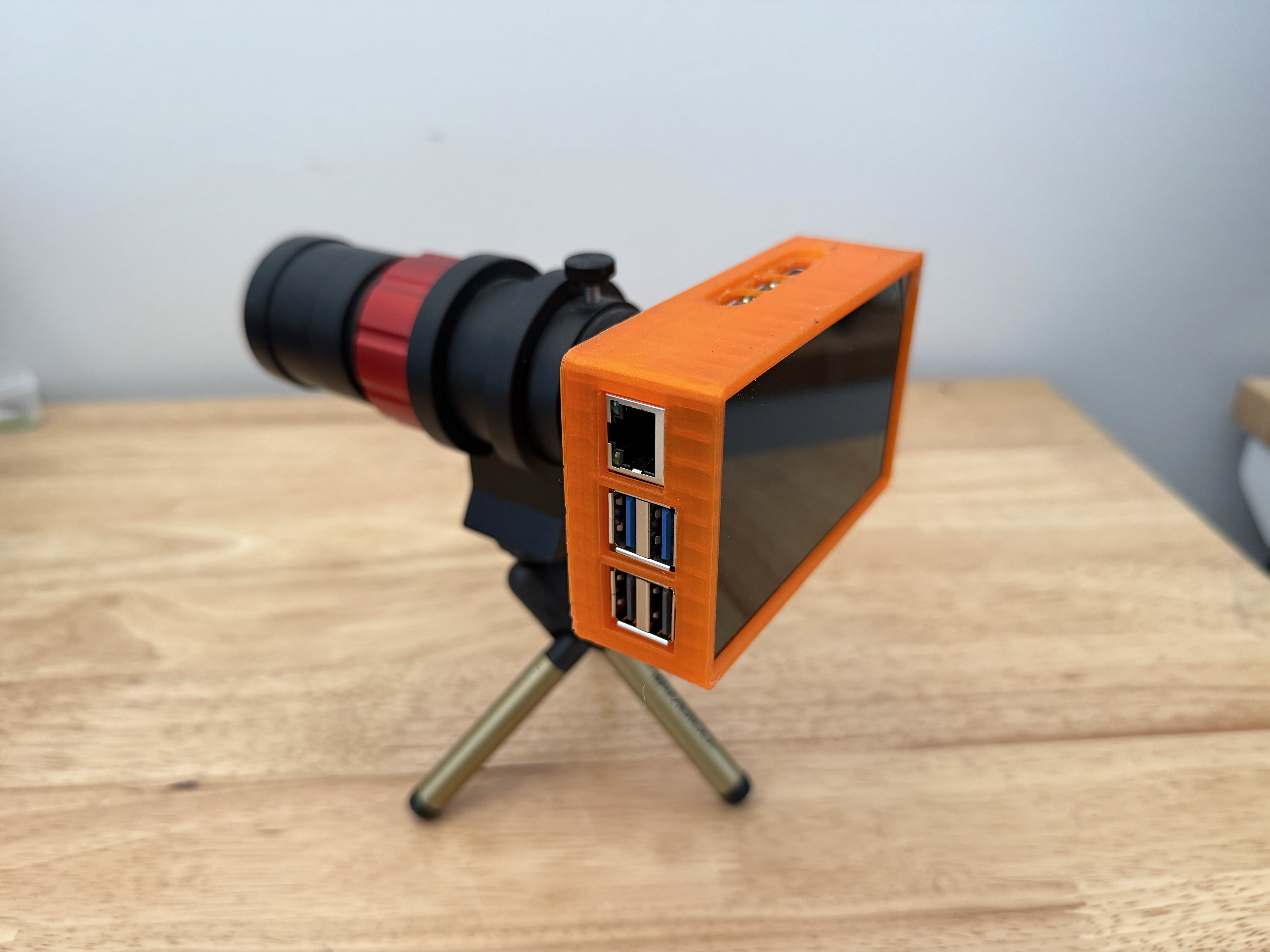 3D printed PiPiece case with HyperPixel4 display
Software Components
Backend - Express.js API Server
Located in /server, the API provides:
Camera API (
/api/camera/*)- Single photo capture with configurable settings
- Long exposure support
- Timelapse sequences
- MJPEG video streaming for focus/preview
- Camera status monitoring
System API (
/api/system/*)- System status and uptime
- Remote restart and shutdown
- Package updates with streaming output
Events API (
/api/events)- Server-sent events for real-time status
- Camera and system state monitoring
See server/README.md for API details.
Frontend - Vue.js UI
Located in /ui, the interface provides:
Preview View: Live camera control with adjustable settings
- Gain, exposure time, red/blue white balance gains
- Continuous capture mode
- Interactive settings sidebar
Focus View: MJPEG video stream for precise focusing
Capture View: Single image capture with preview
Timelapse View: Automated sequential imaging
System View: Device management and status
See ui/README.md for development details.
Quick Start
1. Hardware Setup
- Assemble your Raspberry Pi with HQ Camera and optional HyperPixel4 display
- Install Raspberry Pi OS (64-bit recommended)
- Optionally, 3D print and assemble the PiPiece case
2. System Configuration
Follow the comprehensive setup guide in setup.md which covers:
- Enabling the camera interface
- Installing Node.js 24
- Configuring PM2 process manager
- Setting up the HyperPixel4 display
- Configuring autostart and kiosk mode
Optional: Configure Chromium Kiosk Mode Autostart
To launch the PiPiece interface automatically on boot in fullscreen kiosk mode:
# Create the labwc config directory if it doesn't exist
mkdir -p ~/.config/labwc

# Copy the autostart configuration
cat config_labwc_autostart.sh > ~/.config/labwc/autostart

# Or manually edit the file
nano ~/.config/labwc/autostart
Add the following content to ~/.config/labwc/autostart:
~/pipiece-ui/setup/kiosk.sh http://localhost &This launches Chromium in kiosk mode through setup/kiosk.sh, a supervised launcher that restarts Chromium automatically if it crashes (labwc's autostart never supervises the processes it launches). This configuration:
- Opens Chromium in kiosk mode (fullscreen, no browser UI)
- Points to the local PiPiece server (localhost)
- Enables dark mode for OLED display optimization, following the desktop theme chosen by
setup/theme.sh— setPIPIECE_DESKTOP_THEME=light(or record it insetup-state.env) to drop--force-dark-mode - Disables error dialogs and info bars
- Restarts Chromium within ~5s if it crashes, logging each restart to
~/.local/state/pipiece-kiosk.log - Keeps remote debugging (DevTools) off by default — set
PIPIECE_KIOSK_DEBUG=1before launch to enable it for development
After configuration, reboot to test:
sudo reboot3. Quick Installation
# Clone or copy the project to your Pi
cd ~/src
# Assuming project is in ~/src/pipiece-ui

# Install and start the server (production: no file watching)
cd ~/src/pipiece-ui/server
npm ci
pm2 startOrRestart ecosystem.config.cjs --update-env
pm2 save
pm2 startup systemd  # Follow the instructions

# Build the UI (on development machine)
cd ~/src/pipiece-ui/ui
npm ci
npm run build

# Copy ui/dist/* to the Pi at ~/src/pipiece-ui/ui/dist/
4. Access the Interface
- Touchscreen: The UI will auto-launch in Chromium kiosk mode
- Web Browser: Navigate to
http://pipiece.localorhttp://<pi-ip> - API Docs: Visit
http://pipiece.local/api-docs
Usage
Basic Image Capture
- Navigate to the Preview view
- Adjust camera settings:
- Gain: Analog gain multiplier (higher = brighter)
- Exposure: Shutter time in milliseconds
- Red/Blue Gain: Manual white balance adjustment
- Click Capture to take a photo
- Enable Repeat for continuous capture
Focusing
- Navigate to the Focus view
- Point the camera at your target
- Adjust focus ring while watching the live MJPEG stream
- Use the zoom features to fine-tune
Timelapse
- Navigate to the Timelapse view
- Set interval and duration
- Start the sequence
- Monitor progress and stop when needed
API Access
# Capture an image
curl -X POST http://pipiece.local/api/camera/capture \
  -H "Content-Type: application/json" \
  -d '{"gain": 1.5, "exposure": 1000, "redGain": 2.0, "blueGain": 1.8}'

# Get system status
curl http://pipiece.local/api/system/status

# Stream real-time updates
curl http://pipiece.local/api/events
Project Goals
AI-Assisted Development
PiPiece is developed with AI coding assistants as a primary workflow, exploring how far they can take a full-stack hardware project. The Bird Watcher feature in particular was an interesting case study.
The Bird Watcher was first attempted with ChatGPT (GPT-4.5). The experience was frustrating: it repeatedly added Express.js route code that failed to compile, then "fixed" the errors by simply deleting the non-working code until it compiled again — leaving incomplete, non-functional routes. After several iterations the feature still didn't work.
Claude (claude-sonnet-4.6) completed the entire feature in a single session. Here's a sample of the back-and-forth that led to a working implementation:
"It's been running and I've seen birds land on the feeder but no pictures were taken."
Claude diagnosed the root cause from PM2 logs alone:
[bird-watcher] [diag] top_detection=tennis racket(0.586), captures=0
[bird-watcher] [diag] top_detection=clock(0.586), captures=0
[bird-watcher] [diag] top_detection=clock(0.609), captures=0
"The diagnostics tell the whole story. The COCO SSD MobileNet V1 (2018, quantized) model is too weak for this scene — it sees 'clock' and 'tennis racket' from the feeder shape, and never detects 'bird' at all, even with birds present. The fix is to switch to EfficientDet-Lite0."
After switching models, a working download URL was needed — the TF Hub link returned HTTP 403. Claude searched the web, found the correct MediaPipe model URL, and patched the download in the same turn.
Other challenges Claude solved autonomously:
- Identifying that
setPointerCapturewas called on the wrong DOM element, causing the ROI drag to drop after 20px - Constructing the correct image URL from the
/api/camera/autoresponse fields (the endpoint doesn't returnimageUrl) - Broadening the HSV seed color range when seed level was reporting 15% for an 85%-full feeder
- Adding
touch-action: noneso iOS/Android touch events don't cancel pointer capture during ROI drawing
Learning Objective
This project serves as a practical exploration of AI-assisted full-stack development, including:
- RESTful API design and implementation with Express.js
- Modern frontend development with Vue.js and Server-Sent Events
- Hardware interfacing with the Raspberry Pi HQ Camera
- On-device machine learning with LiteRT (Google AI Edge)
- Process management and system automation
Future Development
The original goal — live viewing and capture of faint astronomical objects from a telescope, with image stacking, plate solving and deep-sky object cataloging — now ships as Astro Live Stacking. What's next is mount control: using the plate solutions the stacker already produces to close the loop and drive a GoTo mount.
Development
Start Dev Workspace (tmux)
Use the root start-dev.sh script to launch all primary development processes in a tmux tiled pane grid.
Prerequisites:
tmux- UI dependencies installed with
cd ui && npm install
Run from the project root:
./start-dev.shThe script starts these commands:
- In
ui/:./node_modules/.bin/nodemon -w ./src -w ./public --exec "npm run build" -e js,vue,md - In root:
./sync.sh - In
ui/:npm run storybook - In
ui/:npm run preview - In root:
npm run docs:dev
The script recreates the pipiece-dev tmux session on each run so the pane grid is always reset to the expected layout.
Project Structure
pipiece/
├── docs/                              # Project docs and images
├── e2e/                               # Root-level e2e artifacts
├── server/                            # Express.js REST API
│   ├── bin/                           # Server startup script
│   ├── config/                        # Environment and runtime config
│   ├── routes/                        # API route handlers
│   │   └── api/                       # Camera/system/events/file endpoints
│   ├── public/                        # Static files served by Express
│   └── package.json
├── setup/                             # Pi provisioning and helper scripts
├── ui/                                # Vue.js frontend workspace
│   ├── .storybook/                    # Storybook configuration
│   ├── e2e/                           # Playwright UI tests
│   ├── scripts/                       # Utility scripts (manifest generation)
│   ├── src/
│   │   ├── components/                # Reusable Vue components
│   │   ├── views/                     # Application views
│   │   ├── router/                    # Vue Router configuration
│   │   ├── stories/                   # Storybook assets/docs
│   │   └── utils/                     # FITS helpers and tests
│   ├── vitest-browser/                # Browser-mode component tests
│   ├── vitest.browser.config.js
│   ├── vitest.storybook.config.js
│   └── package.json
├── package.json                       # Root docs scripts (vitepress)
├── start-dev.sh                       # tmux dev workspace launcher
├── sync.sh                            # File sync script for development
├── setup.md                           # Comprehensive setup guide
├── config_labwc_autostart.sh          # Chromium kiosk mode autostart config
└── hyperpixel-rotate.sh               # Display rotation utility
Development Workflow
For active development on a local machine with live testing on the Raspberry Pi, use the following workflow:
Automatic File Sync to Raspberry Pi
The sync.sh script uses fswatch and rsync to automatically sync local changes to the Pi:
# Install fswatch (macOS)
brew install fswatch

# Make sync script executable
chmod +x sync.sh

# Edit sync.sh to match your Pi's hostname or IP
# Default uses 'pipiece' as hostname

# Start continuous sync
./sync.sh
The script will:
- Monitor the project directory for changes
- Automatically sync files to the Pi (excluding
node_modules) - Keep your Pi updated in real-time during development
Note: Ensure SSH key-based authentication is set up for passwordless rsync:
# Generate SSH key if you don't have one
ssh-keygen -t ed25519

# Copy to your Pi
ssh-copy-id pi@pipiece
PM2 File Watching (Dev Mode)
setup/server.sh runs PM2 from server/ecosystem.config.cjs, which disables file watching by default — production installs shouldn't restart mid-update when software-update.sh runs npm install. To have PM2 watch and auto-restart on file changes pushed by sync.sh (source dirs only, node_modules ignored), opt in on the Pi:
# One-off
PIPIECE_DEV=1 bash setup/server.sh

# Or
bash setup/server.sh --dev
Configure SSH for Remote Debugging
To enable remote debugging of the Chromium interface running on the Pi, configure SSH port forwarding:
# Edit your SSH config
nano ~/.ssh/config
Add the following configuration:
Host pipiece
  HostName pipiece.localdomain
  User pi
  IdentityFile ~/.ssh/id_rsa
  LocalForward 9222 localhost:9222
This configuration:
- Creates an SSH alias
pipiecefor easy connection - Forwards port 9222 from the Pi to your local machine
- Enables Chrome DevTools remote debugging
Using Remote Debugging:
Connect to your Pi with port forwarding:
bashssh pipieceOpen Chrome on your development machine and navigate to:
chrome://inspectClick "Configure" and add
localhost:9222if not already listedYour Pi's Chromium instance will appear under "Remote Target"
Click "inspect" to open DevTools and debug the running interface
This is particularly useful for:
- Debugging touch interactions on the HyperPixel display
- Testing responsive layouts
- Monitoring console logs and network requests
- Profiling performance on the Pi hardware
Auto-Rebuild Vue.js UI
For continuous UI development, use nodemon to automatically rebuild when files change:
cd ui

# Install UI dependencies if not already installed
npm install

# Watch for changes and rebuild automatically
./node_modules/.bin/nodemon -w ./src -w ./public --exec "npm run build" -e js,vue,md
This command:
- Watches all files in
./srcand./publicdirectories - Triggers
npm run buildon any.js,.vue, or.mdfile change - Combined with
sync.sh, changes are automatically built and synced to the Pi
Complete Development Setup
Open three terminal windows:
Terminal 1 - File Sync:
./sync.shTerminal 2 - Auto-Build UI:
cd ui
nodemon -w ./src -w ./public --exec "npm run build" -e js,vue,md
Terminal 3 - Monitor Pi Server:
ssh pi@pipiece
pm2 logs pipiece-ui
With this setup:
- Edit files locally in your IDE
- UI rebuilds automatically on save
- Changes sync to the Pi instantly
- Refresh browser to see updates (or use the auto-reload script on the Pi)
Alternative: Local Development Server
For UI-only development without the Pi:
cd ui
npm run dev
This runs Vite's dev server with hot-reload. You'll need to proxy API requests to your Pi or mock the API endpoints.
Running Tests
The JavaScript suites (Express API + Vue UI) and the Python scripts/ suite are run separately.
JavaScript (server + UI): from the repo root,
npm test # runs server (vitest) then all UI stagesOr run a single side:
cd server && npm run test                 # API unit tests (vitest)
cd ui && npm run test:unit -- --run       # UI component/unit tests
cd ui && npm run test:e2e:headless        # Playwright end-to-end (always headless)
E2E and visual-snapshot tests must run headless so rendering matches the Pi display — use test:e2e:headless, and update snapshots only via npm run test:e2e:headless -- --update-snapshots.
Python scripts: these are not part of npm test and need a virtualenv with cv2/astropy/ai_edge_litert (system python3 lacks them).
On your dev machine, use a project-local .venv (Homebrew python3 lacks these deps too):
.venv/bin/python -m pytest scripts/ -vOn the Pi itself, use ~/scripts_venv, a dedicated test-only venv (separate from the runtime astro_venv / litert_venv — see setup/scripts-venv.sh) — provision it once with ./setup-pi.sh <host> scripts-venv, then run it from the repo root (scripts/ is a relative path — running from ~ gives ERROR: file or directory not found: scripts/):
cd ~/pipiece-ui && ~/scripts_venv/bin/python -m pytest scripts/ -vAstro pipeline integration tests (real frames): most scripts/ tests are fully mocked, but scripts/test_astro_pipeline_integration.py exercises the stacking pipeline (plate_solve, align_frame, calibration_frames, fits_stacker, color_calibrate, organize_light_frames) against real M51/M17 captures. Every case is parametrized over both capture sessions, so each one runs twice — once per target — and test IDs carry the target (e.g. test_solves_frame_near_catalog_position[m17]). The file skips cleanly wherever its inputs are missing, so what actually runs depends on the machine:
| Case | Needs | Mac (dev) | Pi |
|---|---|---|---|
DNG bridge, fits_stacker, organize_light_frames | real DNG fixtures | ✅ (after fetch) | ✅ |
plate_solve, align_frame, color_calibrate | fixtures + solve-field + astrometry index files | ❌ skips | ✅ |
calibration_frames (dark/flat) | fixtures + hand-placed master_dark.fits/master_flat.fits | ❌ skips | ❌ skips |
The calibration cases need a master dark and flat shot at the same exposure/gain/bin as the fixture lights, which fetch_astro_test_data.py cannot infer — drop a pair into scripts/testdata/astro/<target>/ by hand (capture them with scripts/calibration_capture.py) and they start running.
The plate-solving cases need astrometry.net's solve-field and its index files, which are installed on the Pi (setup/astrometry.sh) but typically not on a dev Mac — so the full pipeline can only be exercised end to end on the Pi.
On the Pi (has both the real capture sessions and the solver, so the whole pipeline runs). The Pi venv lives at ~/scripts_venv:
cd ~/pipiece-ui
PYTEST_PHOTOS_DIR_ARTIFACTS=1 \
  ~/scripts_venv/bin/python -m pytest scripts/test_astro_pipeline_integration.py -v
If the fixture tree scripts/testdata/astro/ is empty, populate it from the Pi's own captures first — copy a handful of frames directly (mind the trailing space in the m17 source directory):
mkdir -p scripts/testdata/astro/m51 scripts/testdata/astro/m17
cp ~/photos/timelapse/m51/000{1..6}.{dng,jpg}   scripts/testdata/astro/m51/
cp ~/photos/timelapse/m17\ /000{1..6}.{dng,jpg} scripts/testdata/astro/m17/
Populate both target directories — a target with fewer than two .dng frames skips only its own parametrized cases (reported as e.g. need 2 m17 .dng fixtures ...), so a half-populated tree quietly halves the coverage instead of failing.
On a dev Mac (only the numpy-only cases run; the solver-gated ones skip). First fetch a fixture set off the Pi over ssh:
# Pull ~6 real DNG+JPG frames per target off the Pi into the git-ignored
# scripts/testdata/astro/ tree (see scripts/fetch_astro_test_data.py --help)
.venv/bin/python scripts/fetch_astro_test_data.py            # --host pipiece --count 6
.venv/bin/python -m pytest scripts/test_astro_pipeline_integration.py -v
By default these tests write their stacked FITS/PNG output to an ephemeral pytest temp dir that's deleted on exit — nothing lands in the UI. The PYTEST_PHOTOS_DIR_ARTIFACTS=1 prefix above keeps the images instead, persisting them under $PHOTOS_DIR/test-results/<test-name>/<timestamp>/ (e.g. ~/photos/test-results/... on the Pi). Browse them in the Photos view by navigating into test-results/. Note they do not appear in the Reports → astro gallery, which only lists real observing sessions under $PHOTOS_DIR/astro/.
Each real-frame stacking case only stacks a handful of fixture frames by default (6 for the SNR case, 3 for the light-frame/final-stack case). Set PYTEST_ASTRO_STACK_COUNT to override that — a positive number stacks that many frames, and 0 stacks every fixture frame available for the target:
PYTEST_ASTRO_STACK_COUNT=0 .venv/bin/python -m pytest scripts/test_astro_pipeline_integration.py -vContributing
This is a learning project, but contributions, suggestions, and feedback are welcome!
- Fork the repository
- Create a feature branch
- Make your changes
- Submit a pull request
Troubleshooting
Camera Issues
# Test camera
rpicam-hello

# Check for stuck processes
ps aux | grep rpicam
kill <PID>

# Enable camera in raspi-config
sudo raspi-config
Server Issues
# Check PM2 logs
pm2 logs pipiece-ui

# Restart server
pm2 restart pipiece-ui

# Check port availability
sudo lsof -i :80
Display Issues
# Check display configuration
grep dtoverlay /boot/firmware/config.txt

# Rotate display
./hyperpixel-rotate.sh
See setup.md for detailed troubleshooting.
Screenshots
All screenshots are generated from the Playwright E2E test suite (ui/e2e/views.spec.js) at 800×480 (HyperPixel4 resolution) and kept in sync automatically.
Bird Watcher
Bird Watcher active state — live detection with seed level and elapsed time
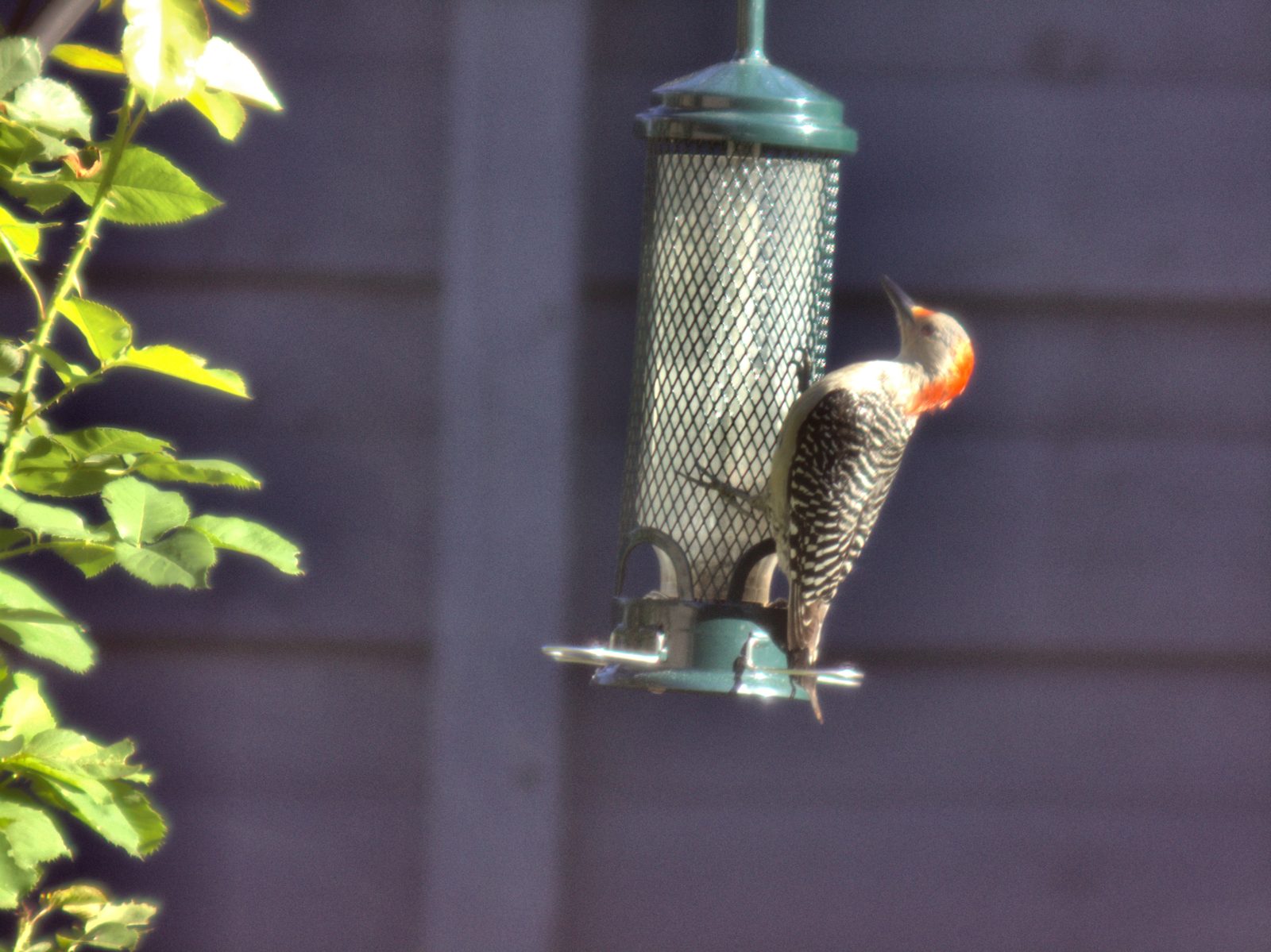 A real automatic capture from a live PiPiece — Red-bellied Woodpecker, 2026-05-03
Bird Rarity Alerts
| |
| Gold outline for a new species (left); silver outline for a rare visitor (right) |
Daily Reports
Daily report with sighting summary and species capture grid
Astro Live Stacking
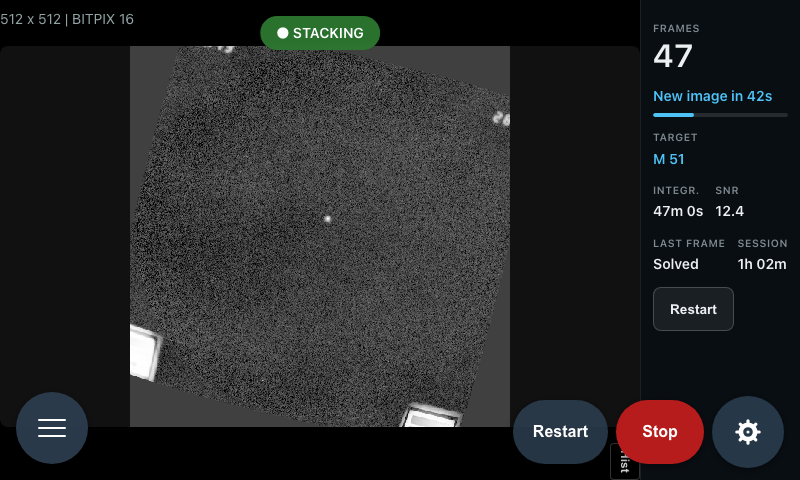 Live stacking HUD — frame count, integration time, SNR, and per-frame solve status
Preview Interface
Camera control interface with live preview and settings
Timelapse Interface
 Timelapse controls with live image updates
Photos Interface
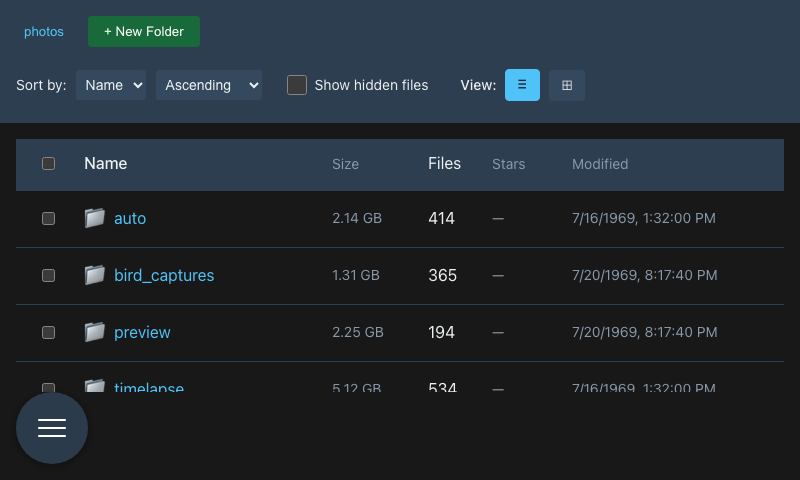 Photo browser with thumbnail and list views
New: The full-screen image viewer has a delete button, so culling a timelapse folder no longer means closing the viewer to tick a checkbox in the list. Delete the frame you're looking at and the next one slides straight into place — on the last frame it steps back one, and on the last file it closes. It always confirms first (no keyboard shortcut, so a stray tap on the touchscreen can't destroy a frame), and it deletes the capture itself even while the RAW toggle is on.
API Documentation
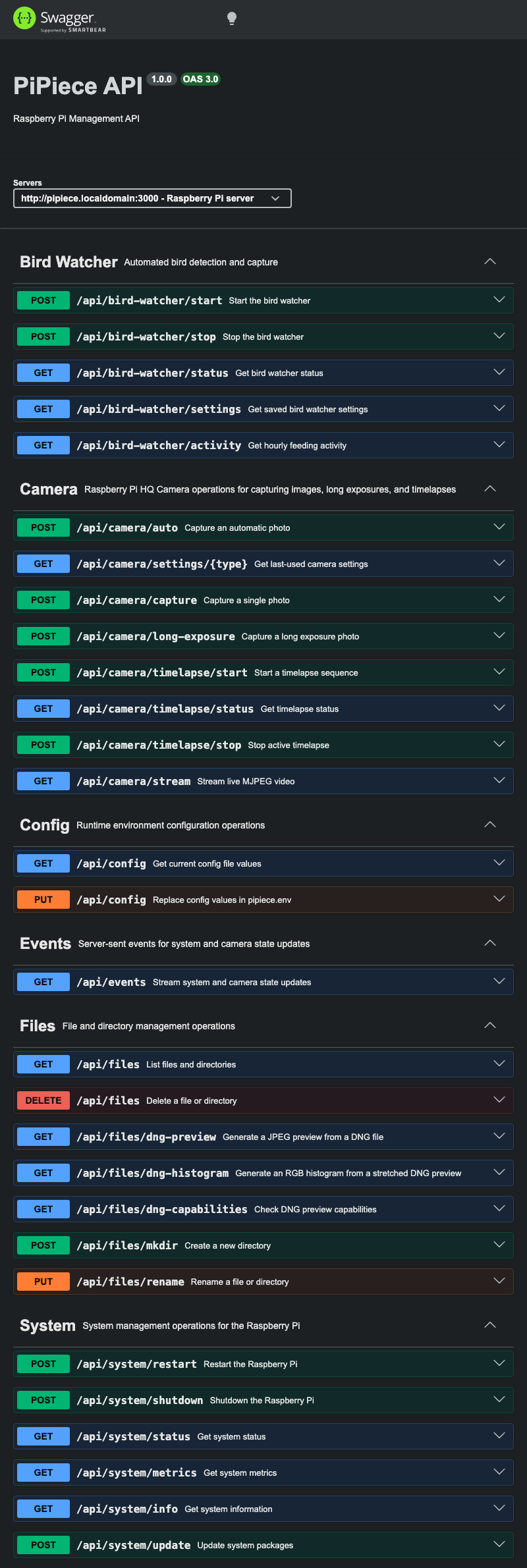 Interactive API documentation with Swagger UI
System Management
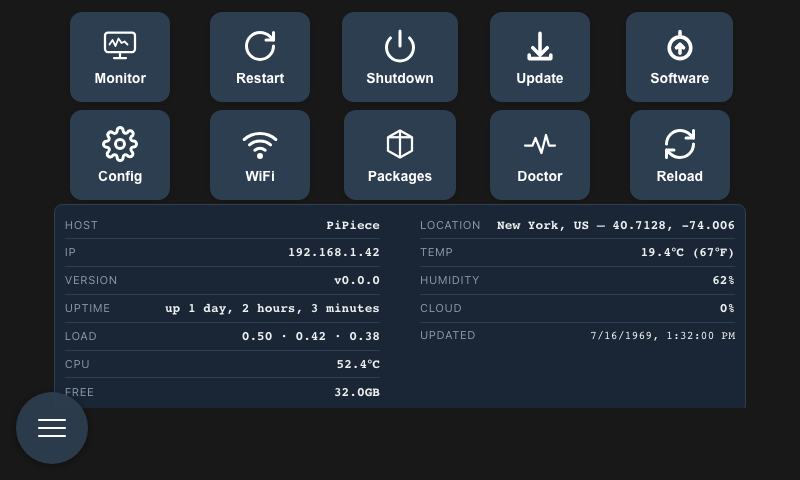 System status and management interface
New: The System Controls view now displays a combined Status & Weather panel showing hostname, IP, version, uptime, load average, CPU temperature, and free disk space alongside live weather data — no Status button click needed.
System WiFi
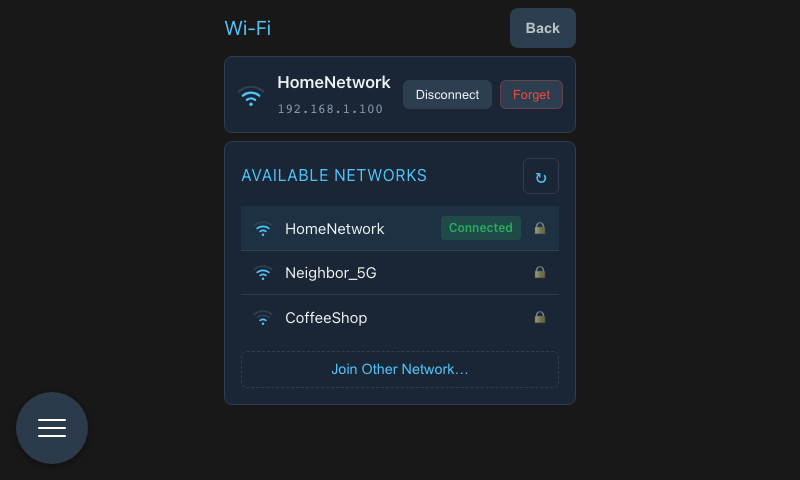 WiFi settings — current connection, available networks, and join-new-network flow
Appearance / Theme
New: System → Config → Appearance adds a Dark / Light / Auto theme selector (per-device, saved in the browser). The app now picks the theme explicitly instead of relying on
prefers-color-scheme, and defaults to Dark — so the Pi kiosk always renders dark even though Chromium's--force-dark-modereports a light OS preference. Auto follows the system light/dark setting for desktop browsers.
New: Setup now configures the Pi desktop appearance too.
setup/install.shasks for dark or light (dark by default, and taken without prompting under--yes), andsetup/theme.sh [dark|light]can be re-run at any time:bash./setup-pi.sh pipiece.local theme darkThis is what removes the white flash on the HyperPixel between compositor start and Chromium's first paint — and on every kiosk restart. It also decides what the app's Auto theme resolves to on-device: Chromium's
--force-dark-modedoes not change whatprefers-color-schemereports, but the desktop GTK theme does.kiosk.shreads the recorded choice so the browser and desktop can never disagree, anddoctor.shreports the live theme and flags it if it drifts from what setup recorded.
System Monitor
New: A live System Monitor view (
/system/monitor) provides a btop-style dashboard without leaving the browser.
Access it via the Monitor button on the System Controls page.
Panels:
- CPU — per-core usage history sparklines (last 60 samples, area charts) with live CPU%
- Memory — segmented bar showing used / cached / buffers / free; total and available displayed below
- Network — download (↓ green) and upload (↑ amber) rate sparklines per interface, with live KB/s or MB/s readout
- Disks — per-mount usage bars with warning/critical colour coding at 80%/95%
- Processes — top 50 processes sorted by CPU%, showing PID, name, CPU%, memory, and state
Data sources: CPU, memory, and network metrics are pushed via the existing SSE stream every 2 s (extended status event). The process list polls GET /api/system/monitor/processes every 3 s using ps. All data is read directly from /proc — no Python script or additional daemons required.
Layout: Two-column grid on screens wider than 600 px; single-column on the HyperPixel4 (480 px portrait). SVG graphs use no external charting libraries.
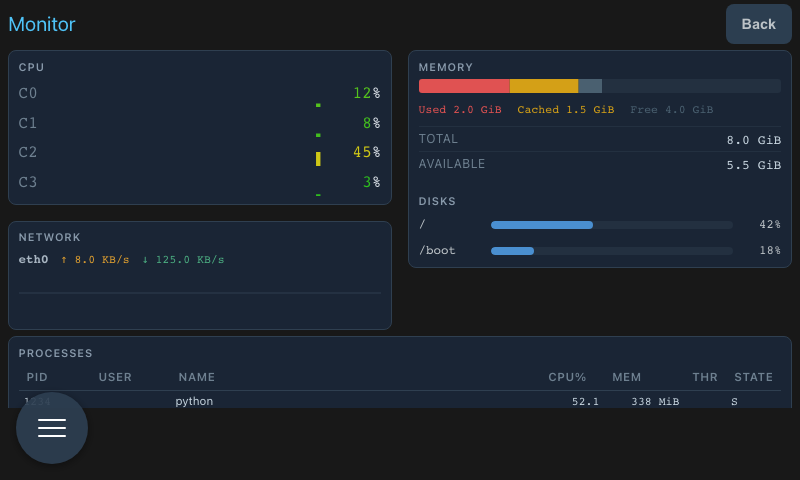 System Monitor showing CPU sparklines, memory bar, network throughput, disk usage, and the process table
Package Updates (apt-soak)
New: A Package Updates view (
/system/apt-soak) shows the status of the apt-soak upgrade queue — which packages are soaking, which are ready to install, and what was recently updated.
Access it via the Packages button on the System Controls page.
Sections:
- Pending — packages currently tracked by apt-soak, each showing version, soak badge (Soaking · Nh left or Ready), and a reboot indicator if a reboot is required to apply the change
- Recent History — last 20 apt transactions from
/var/log/apt/history.log, grouped by date; packages that require a reboot are flagged inline
Reboot banner: when /var/run/reboot-required.pkgs is non-empty a dismissible banner appears at the top of the view.
Data sources:
- Pending queue:
/var/lib/apt/soak-upgrade-tracking(written byapt-soak-upgrade) - Reboot state:
/var/run/reboot-required.pkgs - History:
/var/log/apt/history.log - Soak period:
SOAK_HOURSenv var (default 48)
Port-80 guard: upgrading the nodejs package replaces /usr/bin/node, and file capabilities don't survive the swap — cap_net_bind_service is silently dropped, and the server dies with Port 80 requires elevated privileges on its next restart. After every install, apt-soak-upgrade re-checks the capability with getcap and re-applies it if it went missing. setup/doctor.sh reports the same capability, so a failure shows up in System → Doctor as well.
Periodic Health Checks (doctor-check)
New:
setup/doctor.sh(the same comprehensive check the System → Doctor view runs) now runs automatically once a day via adoctor-check.timersystemd timer, and can alert you off-device the first time any check fails — installed as part ofinstall.sh's Step 10.
Previously doctor.sh only ran manually or at install/update time, so slow degradation (SD card filling up, WiFi that silently stopped reassociating, a config drift a doctor check would catch) on a device meant to run unattended for months went unnoticed until the kiosk screen looked wrong or you SSH'd in to check.
doctor-check.timer runs doctor.sh --emit daily (with up to an hour of random delay, mirroring the apt-soak timer) as the same user the interactive checks expect, and on any failing (✗) result runs a device-unhealthy-alert.sh hook once per run — same no-op-unless-you-create-it convention as low-seed-alert.sh above. The hook is a no-op unless you create server/hooks/device-unhealthy-alert.sh yourself, keeping provider secrets out of the repo. The script passes context via environment variables:
| Variable | Meaning |
|---|---|
DOCTOR_FAILURE_COUNT | Number of checks that failed on this run |
DOCTOR_FAILURES | The failing check lines, one per line, ANSI codes stripped |
DOCTOR_HOST | Output of hostname on the device |
Check status any time with systemctl status doctor-check.timer and journalctl -u doctor-check.service.
New: System → Doctor's Wi-Fi Link Quality check now offers a one-tap Reassociate fix. NetworkManager can report a Wi-Fi device as "connected" while its radio-layer retry count climbs and real throughput collapses, with signal strength barely moving — a state RSSI alone can't distinguish from a healthy link. The check reads the retry counter from
/proc/net/wirelessand warns above a threshold; the fix button disconnects and reconnects the device (nmcli device disconnect && nmcli device connect), the same manual recovery that clears it over SSH, without leaving the dashboard.
New: System → Doctor (and
setup/doctor.sh) now check that both theapt-soak-upgrade.timeranddoctor-check.timersystemd timers are actually installed, enabled, and active — not just present in the repo assetup/apt-soak.sh/setup/doctor-check.sh. Both are one-timeinstall.shsteps, never re-applied by a plain update, so a device whose install predates that step (or where the step silently failed) had no automation and no local symptom: Package Updates just showed an empty Pending list and History forever, with nothing to say why. A ✗ here names the exact fix, e.g../setup-pi.sh <host> apt-soak.
New: System → Doctor's Wi-Fi Signal Diagnostics check quantifies what's actually happening on the radio — signal level, negotiated tx bitrate, and tx failed count via
iw— right next to the Wi-Fi Link Quality retry-count check above it. It's purely informational and never itself warns or fails: the earlier investigation into pipiece2's throughput collapse found RSSI barely moves between a healthy and a degraded link, so this check exists to confirm and put numbers on a flagged link, not to raise a second alarm. Remediation is still the existing manual Reassociate button; there's no unattended auto-fix yet. Ifiwisn't installed the check reports as much and names the fix:./setup-pi.sh <host> tools.
License
This project is developed for educational purposes. See individual component licenses for details.
Acknowledgments
- HyperPixel4: Display by Pimoroni
- Raspberry Pi Foundation: For the amazing platform and camera module
- Vue.js & Express.js Communities: For excellent frameworks and documentation
- Microsoft Copilot: For initial AI-assisted development support
- Anthropic Claude: For building the Bird Watcher feature — from Python/LiteRT inference pipeline to Express.js routes, SSE integration, and Vue UI, all working on the first real-world test
Related Projects
- PiPiece Case Design - 3D printable enclosure
- Raspberry Pi HQ Camera - Official camera module
- HyperPixel4 - Touchscreen display
Status: Active Development | Version: 0.1.0 | Last Updated: March 2026