WiFi Settings
Connect your Pi to a wireless network or join a hidden network — all from the browser, no terminal required.
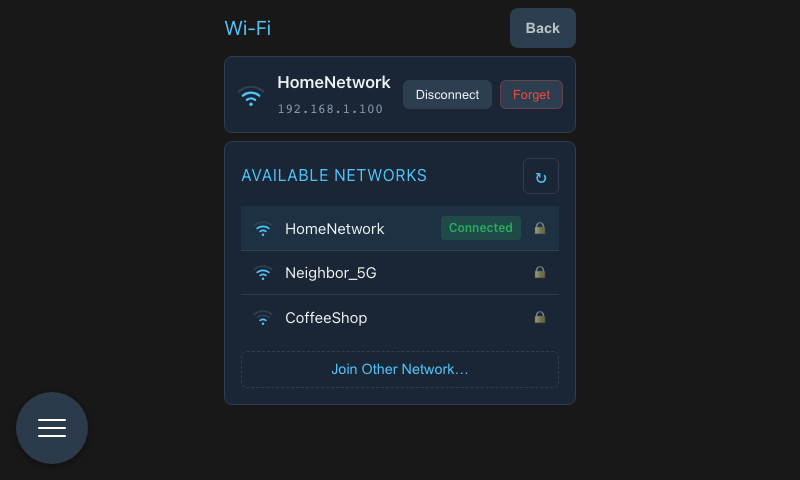
Current Connection
The top of the page shows your current WiFi status: network name (SSID), signal strength, and IP address.
Connecting to a Network
- Tap Scan to see available networks nearby
- Tap a network name in the list
- Enter the password in the dialog that appears
- Tap Connect
The signal icon next to each network shows relative strength. Your currently connected network is marked so you can see it at a glance.
Joining a Hidden Network
If your network doesn't broadcast its name:
- Tap Join Hidden Network
- Type the network name (SSID) manually
- Enter the password
- Tap Connect
After Connecting
The Pi connects to the new network and the status at the top updates. If the connection fails — wrong password, network out of range — an error message appears and you can try again.
Note: If you change WiFi networks, the Pi's IP address will change. You'll need to reconnect your browser using the new address.
No WiFi Adapter
If the Pi doesn't have a wireless adapter, this page shows a "No WiFi adapter found" message. Wired Ethernet is still available and works without any configuration.