Skip to content

System Config View

Overview

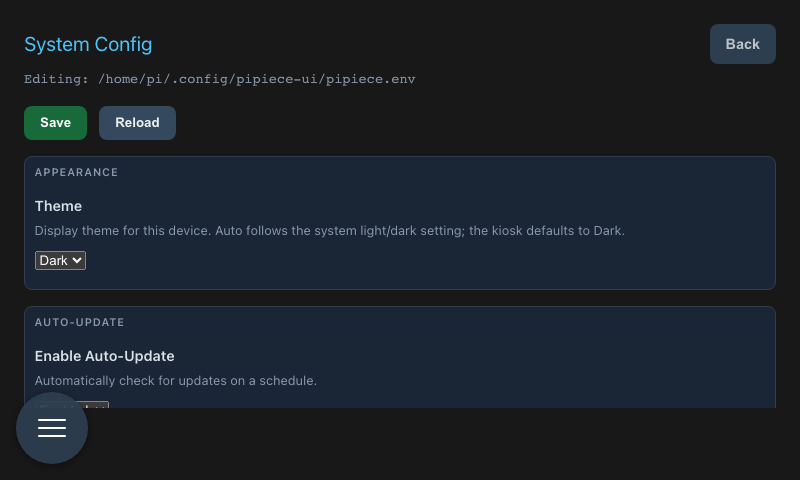
The System Config View provides an interactive interface for editing environment variables stored in the system configuration file (pipiece.env).

Features

  • Table-based configuration editor
  • Add/remove configuration entries
  • Key-value pair editing
  • Input validation
  • Save and reload functionality
  • Configuration file path display
  • Navigation back to system controls

System Config View Screenshot =400x240

Access the System Config View at /system/config.

Configuration Management

View Configuration

  • Loads existing configuration on mount
  • Displays configuration file path
  • Shows all key-value pairs in table format
  • Alphabetically sorted by key

Add Configuration Entry

  1. Click "+ Add Row" button
  2. New empty row appears at bottom
  3. Enter key and value
  4. Click "Save" to persist

Edit Configuration Entry

  1. Click in key or value cell
  2. Modify text as needed
  3. Changes staged until save
  4. Click "Save" to persist

Remove Configuration Entry

  1. Click "×" button in row
  2. Row removed immediately
  3. Click "Save" to persist changes
  4. Removal only affects in-memory state until save

Save Configuration

  1. Click "💾 Save" button
  2. Validates all keys (uppercase, alphanumeric, underscores)
  3. Writes to configuration file
  4. Reloads environment variables
  5. Displays success message
  6. Table refreshes with current values

Reload Configuration

  1. Click "🔄 Reload" button
  2. Discards unsaved changes
  3. Reloads from configuration file
  4. Table refreshes with file values

Key Validation

Configuration keys must follow environment variable rules:

  • Start with uppercase letter or underscore
  • Contain only uppercase letters, numbers, and underscores
  • Pattern: ^[A-Z_][A-Z0-9_]*$

Invalid examples:

  • lowercase (must be uppercase)
  • 123VAR (cannot start with number)
  • VAR-NAME (no hyphens allowed)

Valid examples:

  • PHOTOS_DIR
  • CONFIG_DIR
  • MY_SETTING_123
  • _PRIVATE_VAR

User Interface

  • "System Config" title
  • Controls button (🏠) to return to system controls
  • Configuration file path display

Table

  • Key column (editable input)
  • Value column (editable input)
  • Remove column (× button)
  • Empty state when no rows exist

Actions

  • "+ Add Row" button (bottom left)
  • "💾 Save" button (saves changes)
  • "🔄 Reload" button (discards changes)

Messages

  • Success message (green) after successful save
  • Error message (red) on validation or save failure
  • Loading indicator during operations

Technical Details

  • Loads configuration via /api/config GET endpoint
  • Saves configuration via /api/config PUT endpoint
  • Merges values (non-destructive updates)
  • Reloads environment variables after save
  • Uses Vue composition API
  • Reactive state management
  • Controls Button: Returns to /system (controls view)
  • Back button always available in header
  • Maintains unsaved changes until navigation

Error Handling

  • Validates keys before saving
  • Displays specific validation errors
  • User-friendly error messages
  • Console logging for debugging
  • Prevents invalid configuration

Configuration File

  • Default location: ~/pipiece/config/pipiece.env
  • Format: KEY=value (one per line)
  • Sorted alphabetically on save
  • Reloads into environment on save

Common Use Cases

  • Setting PHOTOS_DIR path
  • Configuring CONFIG_DIR location
  • Adding custom environment variables
  • Adjusting application defaults
  • Runtime configuration changes without restart